Want to change or delete a Template? Check out the instructions below.
Managing Templates
The following options will help you to easily manage your Templates. To access these options, first navigate to Templates.
Editing Templates
Using the Configuration Options available, you can easily adjust your Templates to meet your business needs.
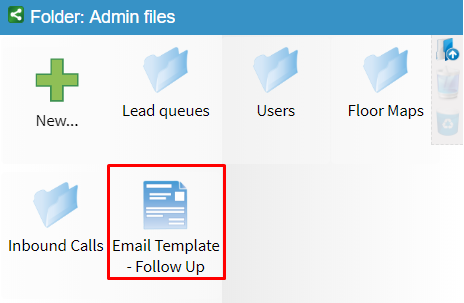
To make changes to an existing Template, click on the Template in the Folder to open it.
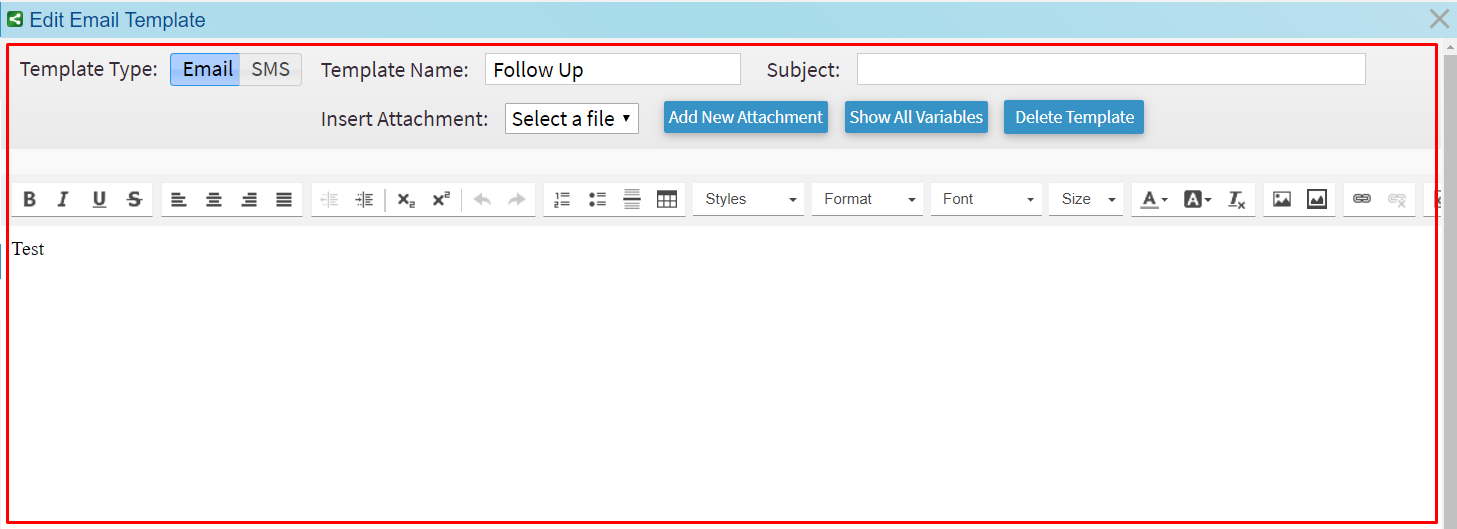
Adjust the Configuration Options to suit the purpose of the Template. Your Template will be automatically saved as soon as you edit it.
Removing Template
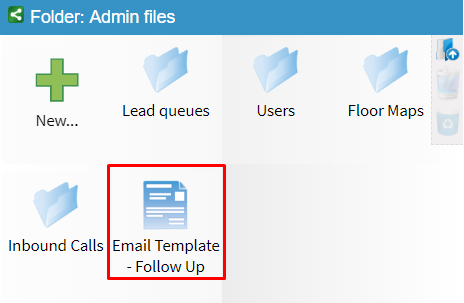
To remove a Template, click on the Template in the Folder to open it.
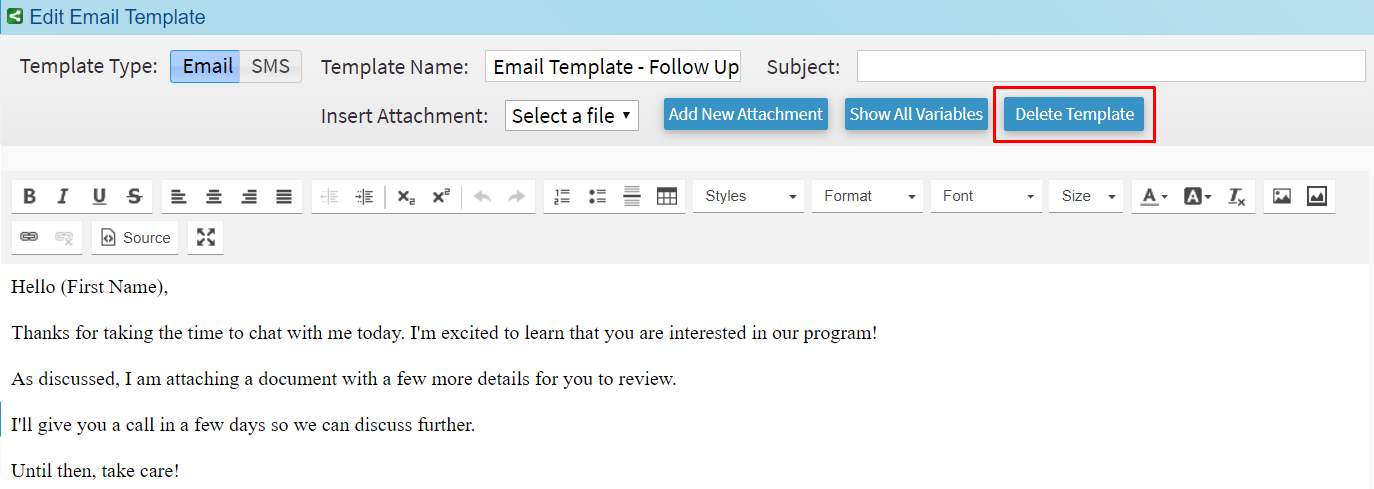
Next, click the Delete Template button in the upper right.
The Template will now be removed.
Was this article helpful?
That’s Great!
Thank you for your feedback
Sorry! We couldn't be helpful
Thank you for your feedback
Feedback sent
We appreciate your effort and will try to fix the article