Overview
ReadyMode iQ Insights offers a suite of reports designed to monitor system productivity metrics. These reports provide deeper, customizable views of dialing activity and agent performance, helping you improve overall efficiency. Reports can be customized using controls to view and export data to review in Excel or CSV format. These include:
- Contact & Conversion
- Lead Upload
- Lead File Dialing Performance
- Inbound Usage
- Outbound Usage
- Agent Status
- Agent Campaign
- Campaign Dialer Calls
- Carrier Intelligence
- Lead Status Penetration
- Not in Service
To view the reports:
- In Readymode iQ, click Insights.
To download the data from any visualization in a report:
- In Readymode iQ, click Insights.
- Click a report.
- At the top of any visualization, right-click Menu Settings.
- Choose from Export to CSV or Export to Excel.
Contact & Conversion
The Contact & Conversion report provides metrics and visualizations related to a client’s dispositions, pipeline stages, and call types. The figures show data from 5 am local time to the user, to the time of execution for that given day. The charts in the Contact & Conversion include:
- Dialer Calls
- Connect: Displays all client and system dispositions from the Connects stage only
- Contacts: Displays all client and system dispositions from the Contacts stage only
- Conversions: Displays all client and system dispositions from the Conversions and Closed stages only
- Daily calls per call attempt
- Daily calls per lead attempt
- Daily calls per DID
- Daily calls per area code
Dialer calls
The dialer calls ring chart displays dialer data. The type of call is distinguished by:
- Human
- Machine
- No Answer
This data is updated every four hours.
CONNECTS, CONTACTS, and CONVERSIONS
These charts reflect stages in the pipeline for custom and system dispositions. Stages for dispositions are managed in the Pipeline section of Dispositions. To access the dispositions:
- In Readymode iQ, click General > Dispositions.
- Double click to select a disposition and open its details.
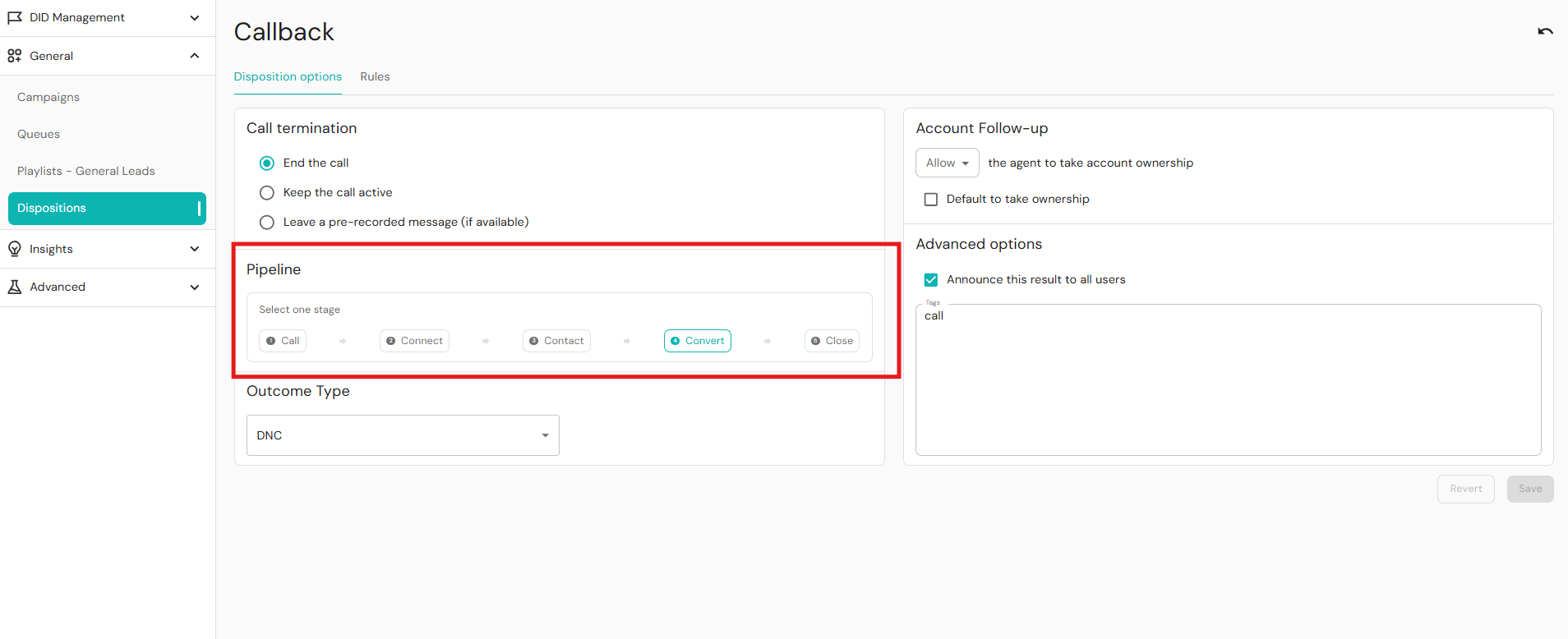
At the top right of each chart is a dropdown to view data for All Calls or only Dialer Calls which excludes manual calls. When navigating away from a page, reloading, or signing out and back in, the All Calls dropdown selection will revert to the default All Calls.
The ring charts are divided into sections reflecting the available dispositions. To view more details about a section, hover over it to show a tooltip. The tooltip shows the percentage of calls for the selected section and the total number of calls for the selected section. The number of calls for all dispositions for the selected chart is displayed in the center of the chart.
DAILY CALLS
There are the following charts for daily calls:
- Per call attempt
- Per lead attempt in days
- Per DID
- Per area code
At the top right of each chart is a dropdown list that allows administrators to view data in a bar chart or line chart. When navigating away from a page, reloading, or signing out and back in, the chart type will revert to the default Bars Chart.
DAILY CALLS PER CALL ATTEMPT
This chart displays the dialed leads for a specific call attempt during a given day.
Y axis: Dialed calls
X axis: First 30 call attempts
DAILY CALLS PER LEAD AGE IN DAYS
This chart displays the dialed leads based on lead age during a given day. The age of a lead refers to how long it has been in the system.
Y axis: Dialed calls
X axis: Top 30 leads age
DAILY CALLS PER DID
This chart displays the total number of calls per DID during a given day.
Y axis: Number of calls
X axis: Top 30 DIDs dialed on a particular day
DAILY CALLS PER AREA CODE
This chart displays the total number of calls per area code during a given day.
Y axis: Number of calls
X axis: Top 30 area codes that are being dialed
Lead Upload
The Lead Upload report shows the number of leads uploaded by campaign and upload source, either using an API or a CSV file. The report highlights overall campaign volume and daily uploads, and can be filtered to focus on specific time periods and campaigns.
Controls
- Uploaded Between: Controls the time period for the report. The default date range is for all time.
- Campaign: Limits results to one or more selected campaigns.
Tabs
- Lead Upload by Campaign
- Lead Upload by Type
Lead Upload by Campaign metrics and visuals
Lead Upload Volume
- Shows the total number of leads uploaded per campaign.
- Breaks out the upload method for each campaign, comparing if the upload method was done using an API or CSV file.
- Includes a count of records by campaign and by upload source.
Count Records by Campaign
- Ring chart breaking down lead uploads by campaign.
- Time frame set using controls for time and campaign.
Count of Records by Posted and Campaign
- Stacked bar chart showing the volume of daily uploads broken down by campaign.
- Shows the number of leads uploaded per day.
- Breaks down daily uploads by campaign and upload type (API vs CSV).
Lead Upload by Type metrics and visuals
Lead Upload Volume
- Shows the total number of leads uploaded per upload type.
- Breaks out the upload method for each upload type (API vs CSV).
- Includes a count of records by upload type and by upload source.
Lead Upload by Type:
- Ring chart breaking down lead uploads by type.
- Time frame set using controls for time and type.
Lead Upload Volume by Date
- Stacked bar chart showing the volume of daily uploads broken down by upload type, API, or CSV file.
Lead File Dialing Performance
The Lead File Dialing Performance report shows how well your lead files are performing from a dialer perspective, helping you decide which files to deactivate and which to prioritize for better performance. It provides both historical and live daily views so you can track performance trends and make timely adjustments.
Controls
- Date range: Controls the time window for the Historic tab with up to 60 days of history.
- Campaigns: Limits the report to one or more selected campaigns.
- Minimum call volume: Excludes lead files with fewer than the specified number of calls to prevent very low-volume files from being charted.
Tabs
- Historic
- Live (Daily)
Historic
The data display can be improved by using the Minimum Call Volume filter to ensure that low call volume data is not included in the larger trend. Files with one or two calls may skew the data where a one call one answer lead would return a 100% answer rate. Lead File Performance by Campaign displays:
- Total calls: Total number of dialer calls made to leads in the file.
- Answer rate: Percentage of calls answered.
- Answering machine detection (AMD) rate: Percentage of calls detected as answering machines.
- Connection rate: Percentage of calls that resulted in a successful connection. This will include abandoned calls.
- Calls to Connect: similar to the Connection Rate. A smaller number indicates a better return on the number of calls made that connected and were successful.
- Total talk time: Aggregate duration of all connected calls.
- Average talk time: Average duration per connected call.
Hourly Call Volume and Connection Rate
- An hourly visualization of total calls and answer rate data. This can be used to track performance over time and indicate where attention should be focused to improve resource allocation and efficacy.
Live (Daily)
- The Live (Daily) tab provides the same metrics as the Historic report, but shows data from 5 AM (user's local time) up to the current time. Note that the report refreshes only when the tab is clicked.
- These charts help you track performance over time within a day, identify optimal calling windows, and spot degradation that may warrant adjusting call strategies or deactivating specific lead files.
Inbound Usage
The Inbound Usage report shows how inbound calls are handled across your IVR (Interactive Voice Response) systems and queues, helping you understand where calls are routed and how much time is spent on them. It focuses on call volume, minutes, and handling quality over time.
Controls
- Date range: Shows data for up to the last 60 days.
- IVR: Filters results by a specific interactive voice response. For example, “Press 1 for Sales…”.
- Queue: Filters results by a specific queue that receives inbound calls.
Metrics and visualizations
The report includes aggregated inbound metrics such as:
- Total Inbound Minutes: Total duration of all inbound calls within the selected date range.
- Call volume minutes: Total minutes associated with inbound call handling. This includes ringing, IVR, queue, and talk time.
- Average Total Duration: Average length of an inbound call from start to finish in minutes.
- Average Talk Duration: Average agent talk time in minutes per inbound call.
- Average Ring Duration: Average time the caller spends ringing before being answered in minutes.
- Human Answered Calls: Number of calls answered by an agent, distinct from calls answered by the IVR only.
Total Inbound Minutes by Day
- Total inbound minutes are broken down by day. The data shown is restricted to 60 days.
Calls answered by humans
- Counts calls that reach and are answered by a human. Calls picked up by an IVR technically count as answered but do not appear on this chart. This chart helps you understand how many calls are successfully handled by staff.
Calls answered by IVR
- Counts calls answered and handled by the IVR system.
- Shows how many calls are handled or routed without immediate agent involvement.
- Helps you see where calls are being directed in the system (for example, self-service flows, specific menus, or transfers). These can be specified by users to have unique values. Contact support@readymode.com for more information.
Calls by queue
- Shows how many calls enter each queue and how they are handled.
- Calls may go to an IVR first and then route into a queue, or be sent directly to a queue.
- This helps identify callers' wait blockages, how queues are utilized, and where bottlenecks may occur.
These daily charts make it easier to spot patterns, such as busy days, longer wait times, or shifts in how many calls are handled by agents versus IVR.
Outbound Usage
The Outbound Usage report shows the amount of outbound calling your teams are doing and differentiates manual calls from dialer calls. It is the counterpart to the Inbound Usage report, but focused entirely on outbound traffic.
Controls
- Date Range - Date range selector that defines which days are included in the report. This range applies to all totals, averages, and charts displayed.
Metrics and visualizations
The report aggregates outbound activity into key metrics:
- Total Outbound Call Volume - Total number of outbound calls made in the selected date range.
- Total Outbound Duration - Total minutes spent on all outbound calls.
- Total Dialer Calls - Total number of calls initiated by the dialer.
- Total Dialer Duration - Total minutes spent on dialer-initiated calls.
- Total Manual Calls - Total number of calls placed manually. This includes click-to-call or direct dialing.
- Total Manual Duration - Total minutes spent on manually initiated calls.
Outbound Call Volume by Date
- Highlights how your outbound workload is distributed between automated and manual efforts, helping identify trends in your data. The maximum number of days is 60.
These charts show the number of calls and time spent per day, split between dialer and manual calling. So you can understand outbound usage patterns and capacity. These metrics help you compare how much of your outbound effort is driven by the dialer versus manual calling, and how that effort translates into time spent.
Agent Status
The Agent Status report shows how and where agents spend their time, broken down by high-level availability statuses and more detailed substatuses. Understand agent utilization, time in productive states, and time spent in non-productive or offline modes.
Controls
- Date range: Defines the time window for all charts and tables.
- Status: Filters by the main availability mode. For example, Break, Ready, Prep Work.
- User: Filters the report to one or more specific agents.
Status and substatus
- Status: Represents the main availability mode, such as Ready, Break, and Prep Work. These top-level statuses are configurable. For more information, contact support@readymode.com.
- Substatus: Provides a more detailed view of what the agent is doing within a status, such as On a call, Waiting, Wrap up, or Inbound only. Substatuses are system-defined using the Status control and help distinguish between different types of active or idle time. For more information, contact support@readymode.com.
Tabs
- Hours by Agent
- Hours by Day
- Agent Hours Table
Hours by Agent
- Shows how many hours each agent spent in each status and substatus.
- Uses horizontal bar visualizations to keep the view readable, especially when there are more than 50 agents.
- Helps you compare time allocation across agents (for example, who spends more time in Ready vs Break vs On a call).
Hours by Day
- Focuses on total time per day for all agents, rather than on individual agents. Breaks down daily hours spent in different statuses and substatuses. Useful for spotting patterns such as busier days, more time in queues, or higher break times on specific dates.
Agent Hours Table
- Presents the same information as the visual tabs in a tabular format.
- Includes per-agent and per-status hour totals, making it easier to export or review detailed rows.
- Ideal for audits, coaching, or performance reviews that require precise hourly calculations.
Agent Campaign
The Agent Campaign report shows how much work agents perform on each campaign, helping you understand where agent effort is focused. This is useful for users who need to track time and activity allocation across multiple client campaigns from an agent perspective.
Controls
- Date Range: Defines the time window for all data in the report.
- Agents: Limits the report to one or more selected agents.
- Campaigns: Filters the view to specific campaigns you want to analyze.
Tabs
- Call Volume
- Talk Time
Call Volume
- Shows how many calls each agent handled per campaign within the selected date range.
- Helps you see which campaigns are receiving the most agent effort in terms of call count.
- Useful for understanding workload distribution across campaigns for each agent.
Talk Time (per agent)
- Shows total and/or average talk time per agent by campaign.
- Highlights which campaigns consume the most agent time, not just the most calls.
- Hover over the bars in the visualization for details per campaign.
- Helps evaluate efficiency, staffing needs, and contractual performance at the campaign level.
Campaign Dialer Calls
The Campaign Dialer Calls report shows dialer performance at the campaign level, helping users understand where outbound effort and talk time are being spent. It focuses on call volume and minutes per campaign, with an emphasis on visualizing trends over time.
Controls
- Date Range - Defines the time window for all metrics and charts in the report.
- Campaigns - Filters the view to one or more selected campaigns.
Metrics and visualizations
Ring charts show the share of overall call volume, total call time, and talk time contributed by each campaign. Quickly identify the campaigns with the largest share of outbound activity. The bar charts shown on the Campaign Dialer Calls report display:
- Call Volume by Campaign: Total number of dialer calls placed for each campaign in the selected date range.
- Total Call Time by Campaign: Total duration in minutes for all dialer calls per campaign, including ringing and talk time.
- Talk Time by Campaign: Total agent talk time in minutes per campaign, helping distinguish between attempts and actual conversation time.
The data from the ring charts is converted to daily stacked bar charts to provide a daily breakdown of call volume and minutes by campaign within the selected date range. These charts make it easy to see how campaign activity changes over time and to spot spikes, drops, or shifts in focus.
These metrics help users understand which campaigns are consuming the most dialer effort and agent time. This campaign-level view is designed for users who need clear, visual insight into how dialer resources are allocated across different client campaigns.
Carrier Intelligence
The Carrier Intelligence report helps you understand how effectively Readymode is using clean DIDs per carrier. Learn where you need to adjust your DID inventory or carrier strategy to get the most from carriers.
Controls
- Date Range: Defines the time window for all metrics and charts in the report.
- Campaigns: Filters results to one or more specific campaigns, so you can assess carrier performance for the selected clients or programs.
Metrics and visualizations
Call Volume by Carrier
- Shows how many calls were placed through each carrier.
- Helps you understand which carriers are most heavily used.
- The Other data consists of all smaller carriers grouped.
- This includes all calls, including multiple calls made to the same phone number.
DID Clean Status for Carrier Called by Carrier
- Shows how often calls use a clean DID for the carrier being called.
- Shows what percentage of the time, for a given carrier, you use a clean DID on that same carrier. For example, the percentage of calls to Verizon phone numbers made from a Verizon-clear phone number was successful.
- Helps determine whether you need more clean DIDs for specific carriers.
Answer rate (ASR) by Carrier
- Shows answer rate per carrier, reflecting how well calls connect when Autopilot selects clean DIDs.
- Helps you see which carriers respond best when Smart ANI 2.0 is active and whether Carrier Intelligence is improving answer rates on major carriers.
AMD Result by Carrier
- Breaks down whether each carrier's calls connect to a human or an answering machine.
- Useful for understanding contact quality per carrier.
Average Total Call Duration (seconds) by Carrier
- Shows how long calls last on average for each carrier.
Average Talk Time by Carrier
- Focuses on the average agent talk time per carrier.
- Indicates which carriers produce longer or more engaged conversations.
Use this report to identify carriers where you frequently cannot use a clean DID and determine whether you should acquire more clean DIDs for those carriers. You can also compare answer rates by carrier to see where Carrier Intelligence is most effective and which carriers to prioritize.
Lead Status Penetration
The Lead Status Penetration report shows where leads sit in your sales funnel and whether they are progressing or getting stuck along the way. It helps you understand how thoroughly leads are being worked and where follow-up or process changes may be needed.
Controls
- Campaigns: Filters all charts and tables to one or more selected campaigns and lets you compare penetration and lead flow across different clients or programs.
Metrics and visualizations
Lead Volume by Status
- Shows the total number of leads in each status. Statuses include:
- Active: Leads available for dialing.
- Scrubbed: Leads with a final disposition that are no longer in the dialing pool.
- Permanent do-not-call (DNC): Leads on the DNC list that will never be reintroduced into the dialing pool.
- Non-permanent DNC: Leads currently on the DNC list but will be reintroduced into the dialing pool.
- Shows how many leads are still dialable versus permanently removed or on DNC?”
- Useful for spotting if too many leads are stuck in callback or non-dialable states. Or if active pools are shrinking.
- Note that duplicate leads are included in this chart.
Lead Volume by Attempt and Age
- Focuses on active leads only.
- Y axis: Lead counts
- X axis: Number of call attempts.
- The lead age segment is shown as: 0 days, 1-7 days, 8-30 days, over 31 days.
- Shows if fresh leads are being contacted promptly and whether older leads are being over-worked or under-worked.
Lead Volume by Disposition and Time Since Disposition
- Shows active leads by disposition and how long they have been in that disposition.
- The disposition age segment is shown as 1-7 days, 8-30 days, 31+ days, and null, where no value can be assessed.
- Helps you find bottlenecks, like leads stuck in Call back or Follow up for too long without new attempts.
Lead Volume by Disposition and Number of Attempts
- Shows active leads by disposition and how many times they have been called while in that disposition.
- Active lead attempts are shown for each disposition.
- Useful for understanding whether certain dispositions receive enough follow-up. For example, callbacks get only one attempt.
Lead Volume by Campaign and Status
- Breaks down lead status information (Active, Permanent DNC, non-permanent DNC, Scrubbed) per campaign.
- Excludes duplicates to make cross-campaign comparisons cleaner.
- Shows which campaigns have the healthiest active pools and where leads are getting stuck.
Lead Volume by Lead File and Status
- Shows the status of the Campaigns view, but grouped by lead file.
- The Lead File dropdown controls the display of this visualization only. You can search and select particular lead files to display.
- Shows which lead files are performing well in terms of penetration and which files have many leads stuck in non-progressing states.
Not in Service
The Not in Service report shows how many calls are being made to numbers that are no longer in service and gives you tools to prevent calling them again. The primary purpose is to help you clean your lists and reduce wasted dialer effort. The Not in Service (NIS) report:
- Surfaces outbound calls that reached NIS numbers.
- Helps clients understand the scale of invalid or dead numbers in their calling universe.
- Acts as a temporary solution until automatic handling of NIS outcomes is available.
Tabs
- NIS
- Download
Metrics and visualizations
Detailed NIS
- Tabular information about the day, phone number, and number of calls made.
Total NIS Count
- Total calls made that resulted in a NIS response.
Total Distinct NIS Count
- Total calls made to unique phone numbers that resulted in an NIS response.
NIS Count by Day
- The number of calls resulting in an NIS response over the last 60 days.
Regularly review Not in Service volumes to monitor the overall quality of your calling lists. When you see sustained Not in Service activity, export those numbers and upload them as DNC so they are no longer dialed. Rely on this report as a safeguard to keep your lists as clean and efficient as possible.
Was this article helpful?
That’s Great!
Thank you for your feedback
Sorry! We couldn't be helpful
Thank you for your feedback
Feedback sent
We appreciate your effort and will try to fix the article