Looking to learn about Call Results (aka Dispositions or Call Outcomes)? You're in the right place!
About Call Results
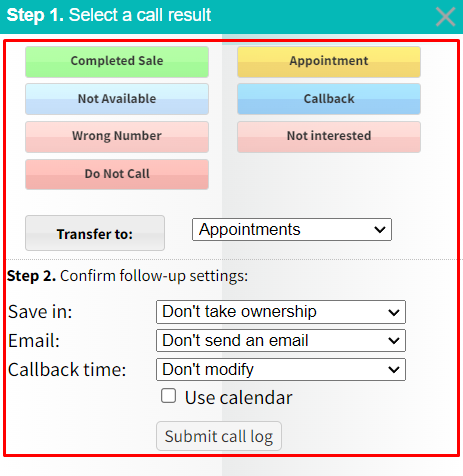
Call Results appear when a Lead or Lead Profile is opened. These allow Agents to disposition a call to place it into Queues, schedule Callbacks, send messages using Templates, or other actions.
To maximize efficiency for your Agents, you can use the Configuration Options to customize each Call Result so that a specific action takes place.
Navigate to Call Results
To view and manage Call Results, navigate to Settings on the Dashboard.
Note: You'll need "Application Manager" Permissions to view Settings.

Under Settings, select Agent Options to open Profile Features.

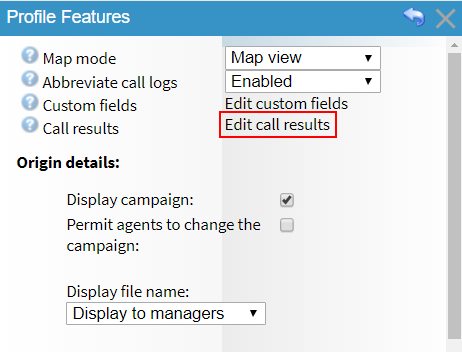
Under Profile Features, select Edit call results.
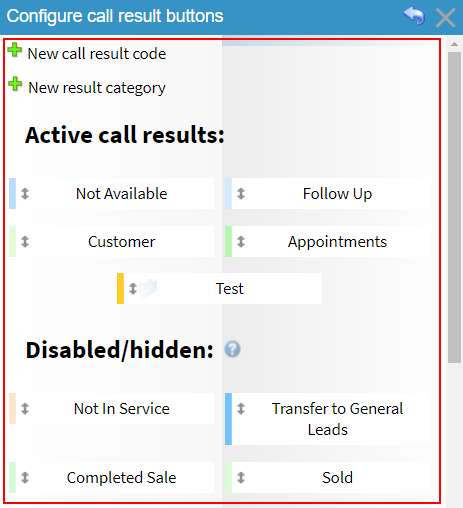
You'll now be able to view and manage your Call Results.
Quick Tip: Want to view your Call Results as they appear in the CRM? See how here.
Was this article helpful?
That’s Great!
Thank you for your feedback
Sorry! We couldn't be helpful
Thank you for your feedback
Feedback sent
We appreciate your effort and will try to fix the article